How to Checkout with Rapha Gift Card and Promo codes
How to add a promotional code or voucher.
Applying Promotional Codes
Promotional codes should be entered on the final Checkout page. Select the "Promo Code" field, enter your code, and the valid promotion will be applied.
Promotional codes should be entered on the final Checkout page. Select the "Promo Code" field, enter your code, and the valid promotion will be applied.
This is the field to use if you have received codes from our marketing team, RCC benefits or other promotional campaigns.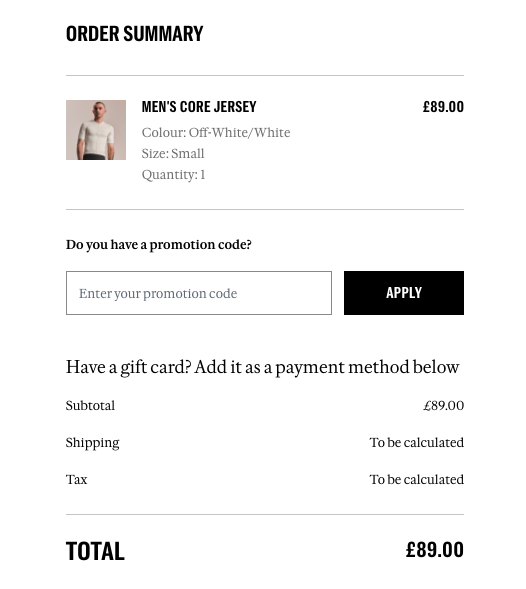
Applying Rapha Gift Cards & E-Gift Vouchers
Rapha Gift Cards (including in-store Clubhouse gift cards) act as a form of payment and can be used alongside a discount code or sale offer.
Rapha Gift Cards (including in-store Clubhouse gift cards) act as a form of payment and can be used alongside a discount code or sale offer.
For any gift cards with a 21 digit code and 4 number pin:
1. On the checkout page, enter your 21-digit gift card number and PIN as a payment method.
2. Click 'Place order'; the balance will update to reflect any remaining payment due.
3. Select your preferred payment method to cover the remainder and click 'Place order' again. Note: Only one gift card can be redeemed per order. If you have multiple cards, use them across separate transactions or contact Customer Service to combine the values.
If you wish to check the balance or expiry date of your Rapha Gift card, you can do it here. We are currently not selling Rapha Gift Cards online.
Applying Goodwill Codes and Older E-Gift Vouchers
If you have a goodwill code provided by Customer Service, or an e-Gift Voucher issued before 23/12/2025, you must apply it at the final stage of the Checkout screen (under the "Order Summary" header). Enter it in the box that asks, "Do you have a promo code or gift card?". Customer Service codes are formatted as XXX-XXXX-XXXX-XXXX (include the dashes).
If you have a goodwill code provided by Customer Service, or an e-Gift Voucher issued before 23/12/2025, you must apply it at the final stage of the Checkout screen (under the "Order Summary" header). Enter it in the box that asks, "Do you have a promo code or gift card?". Customer Service codes are formatted as XXX-XXXX-XXXX-XXXX (include the dashes).
Important Restrictions
• Most discount codes cannot be used on sale, archive, or discounted items.
• Bundle discounts, First Order codes, and Customer Service vouchers cannot be combined with other promotions or offers.
Having Trouble? If your code is not applying, first check the voucher's terms and conditions to ensure the items in your basket are eligible. If you still receive an error at the checkout stage, please contact us using our checkout webform.